
Job management
Run every job from sold to paid.
Zuops already brings in the lead, books the appointment and sends the estimate and the invoice. Jobs is the piece in between. Once a customer says yes, their job gets its own page: when it's happening, who's on it, what's left to do, the photos and what's owed.
Watch it work4 minIncluded on every plan at no extra charge. Off until you turn it on in Settings > Features.



Loved by 1,500+ businesses

See it in action
See Job Management in action.
Recorded inside Zuops with a demo business. Nothing here is a mockup.
1/9 Intro
How it works
From a yes to a paid job
- 01
Turn it on and pick a board
Switch Jobs on in Settings > Features, then pick the board closest to your work: Service calls or Projects. Rename the stages any time.
- 02
Mark a lead Won
Its job is made by itself, with the customer, the address, the price and the estimate they approved.
- 03
Schedule it, do it, get paid
Set a date and it moves to Scheduled. Your crew taps Start and Finish. When the invoice is paid, the job closes by itself.
The piece in between
Everything after the yes, next to everything before it.
A lot of contractors end up with two systems: one that gets the customer and one that runs the work, with someone copying names and addresses from the first into the second. With Jobs, the lead, the appointment, the estimate, the job and the invoice all belong to the same customer in the same place. Nothing is typed twice.
- A won lead becomes a job by itself
- The approved estimate and its invoice come along
- Every customer's panel lists their jobs
The job page
One page for each job, with no tabs to dig through.
When it's happening, who's on it, what's left to do and what's owed, all on one page. The button at the top is always the next thing to do: schedule it, start it, finish it, make the invoice.
- A checklist every new job starts with
- Notes for the crew that your customer never sees
- Call, message or get directions in one tap
The board
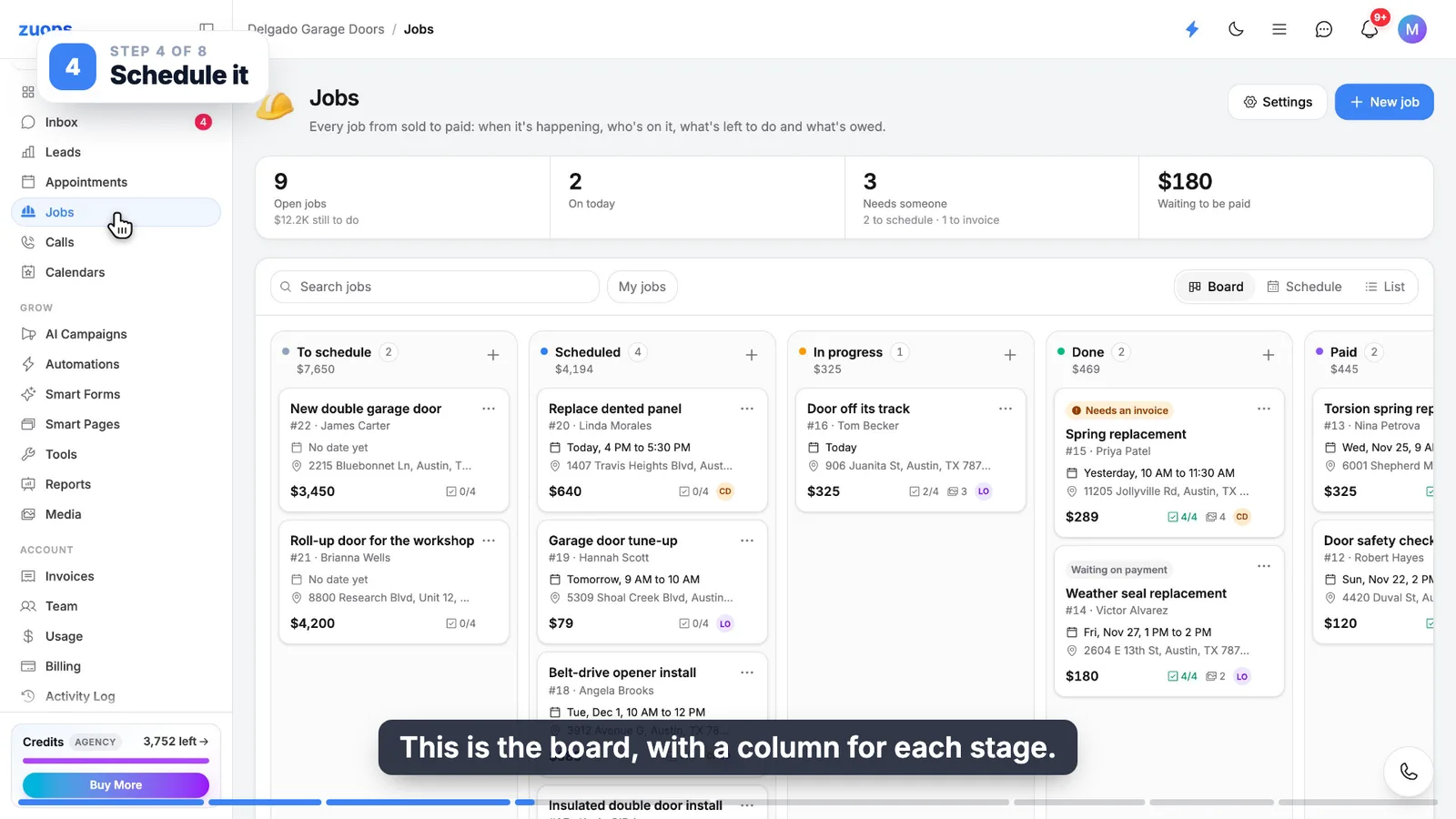
Every job on one board, in stages you name.
Start from one of two boards: Service calls for work done in one visit, or Projects for work that takes days. Rename, add, remove or reorder the stages. Each card shows the date, the address, the price, the checklist and who's on it. Drag a card to move it.
The Service calls board, with a made-up business. Yours can have any stages you like.
The schedule
The week, with a row for each person.
Seven days starting today, one row per crew member. Drag a waiting job onto a day and a person, and it's scheduled and assigned in one move. Drag it again to change the day or hand it to someone else. On a phone, it's the same week as a list, day by day.
Stages that move themselves
You do the work. The board keeps up.
Give a job a date and it moves to Scheduled. Start moves it to In progress and Finish moves it to Done. When its invoices are paid in full, it moves to Paid. Nobody has to remember to drag a card, and anybody still can.
- Call the stages whatever you like
- Every move is written on the job, with who made it
- A deposit alone doesn't close a job
Needs someone
A short list of what's waiting on you.
There are no reports to read. Jobs flags the things that cost money when they're missed: a job with no date, a job that should have started or is running late, finished work with no invoice, and an invoice nobody has paid.
- The count sits at the top of the Jobs page
- Late and unbilled jobs carry a badge on the board
- A filter lists every job with a badge
Photos and files
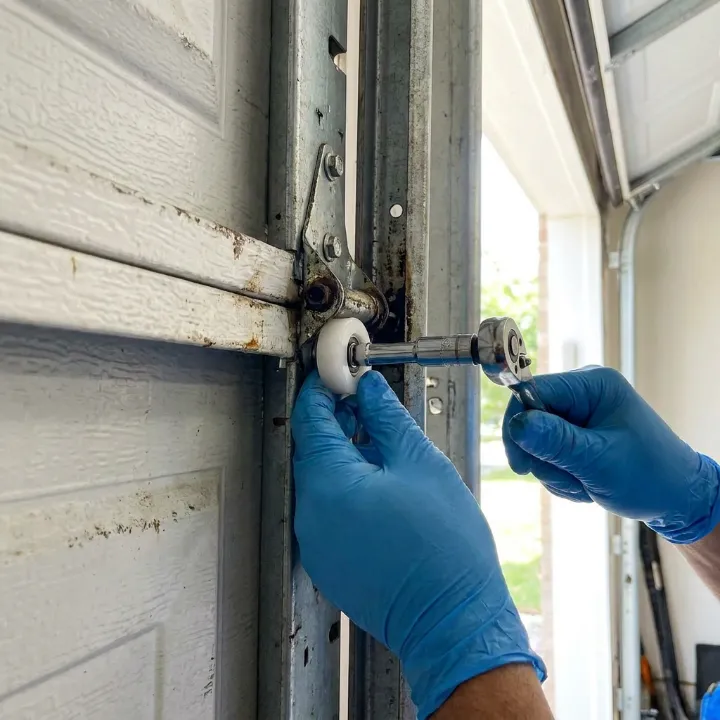
Before and after photos stay with the job.
The crew adds photos from a phone and marks them Before or After. Files go on the job too: a permit, a warranty, a signed form. Photos are made smaller before they upload, so they go through on weak signal. Nothing reaches the customer unless you choose to show it.

For the crew
On my way, Start, Finish.
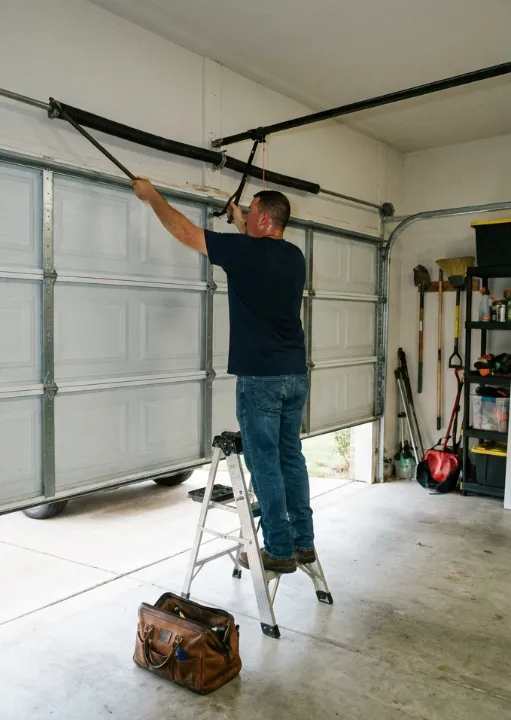
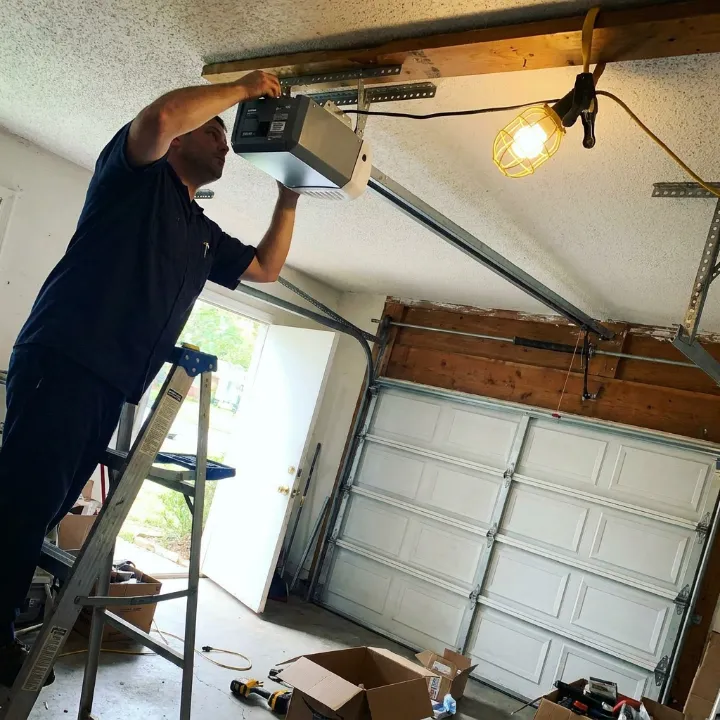
A technician opens the job on their phone and sees what's being done, the checklist and the address. On my way shows them the text first, then sends it to the customer from your business number. Technicians only see the jobs they're on.
- My jobs shows one person's work
- Directions open in Google Maps
- Runs in the phone's browser, with no separate crew app
For your customer
A page your customer can follow, and pay from.
Each job has a link you can send. There's no sign-in: your name, your logo, where the job stands, when you're coming, the photos you chose to share, and the estimate and invoice with a button to pay. It never shows your crew notes, your checklist or who's on the job.
- Updates as the job moves
- Turn it off for one job or for all of them
Automations
Texts that send themselves as the job moves.
A new automation trigger, Job moves to a stage, runs when a job is made, scheduled, started, finished or paid. Three ready-made automations cover the usual ones: tell them it's scheduled, thank them when it's finished, and ask for a review a day after it's paid.
- Messages can use the job's name, date, stage and link
- Pick moments, or single stages on your board
Estimates and invoices
The estimate and the invoice sit on the job.
A job carries the estimate the customer approved and every invoice you send for it, with what's been invoiced, paid and still owed. Customers pay by card into your own Stripe, Square, Authorize.net or Whop account, and Zuops takes no cut. When a finished job's invoices are all paid, it moves to Paid.
Instead of a second system
Do you still need a separate job tool?
It depends on the work. Jobs covers the day to day of a service or project business: what's sold, when it's happening, who's on it, what's done and what's owed. It doesn't do recurring jobs, job costing, timesheets, material orders or change orders. If your business runs on those, a dedicated job tool is the better fit, and Zuops can stay in front of it.
Jobs is enough when
- You want every job in view: sold, scheduled, in progress, done, paid
- A few people work from a schedule and a checklist
- You bill with an estimate and an invoice
- You'd rather not pay for and learn a second system
Included on every plan. Off until you turn it on.
Keep a dedicated job tool when you need
- Recurring jobs
- Job costing and profit per job
- Timesheets
- Material orders and change orders
- GPS tracking, or a separate app for crews
Jobs doesn't do these yet.
Already run one of these? Keep it.
Zuops brings in the lead and books the appointment, then hands both to your job tool.
Jobber
Field service management software
Connects through Zapier
JobNimbus
Roofing CRM and business software
Connects directly
Housecall Pro
Home services business management software
Connects directly
ServiceTitan
Software for commercial and residential trades
A direct connection is coming soon
BuilderLync
Roofing CRM and contractor software
No direct connection yet
What each company calls itself is from its own home page, read November 28, 2026. We say nothing here about their prices or what they can do: check each one's site for that. A direct connection sends new leads and booked appointments from Zuops to the job tool.
Optional
Off until you turn it on.
Jobs doesn't fit every business, so it isn't in anyone's menu until an owner or admin switches it on in Settings > Features. It costs nothing extra on any plan. Agencies turn it on client by client, for the businesses that do the work after the sale.
- A Jobs page in each client's CRM, under your brand
- Hide it from a client's own team if you run it for them
- Snapshots copy the stages and settings, never the jobs
Why Job Management
What it changes on a busy week.
One place for the customer
Lead, estimate, job and invoice on one record.
Nothing typed twice
A won lead brings its address, price and estimate.
A board that keeps up
Stages move when the work does.
Nothing slips
Late jobs and unbilled work are flagged.
Customers kept in the loop
A page to follow, and texts that send themselves.
One less system
No extra charge, and no second login for the crew.
Pricing
Included on every plan at no extra charge. No fee per job or per crew member.
Every plan includes the whole platform. Usage comes out of your plan's monthly credits.
See plans and credit prices

FAQ
Job Management: common questions
The basics
What is Jobs?
Jobs is job management inside your Zuops CRM. Once a customer says yes, their job gets its own page with the schedule, the crew, a checklist, photos and files, notes, and its estimate and invoices. A board, a weekly schedule and a list show every job at once.
Who is it for?
Businesses that do the work after the sale: roofing, HVAC, garage doors, cleaning, remodels, repairs. It fits a small crew that wants to see what's sold, what's scheduled, what's done and what's owed without setting up a big system.
How do I turn it on?
It's an optional feature, off until an owner or admin turns it on in Settings > Features. The first time you open Jobs, you pick the board closest to your work: Service calls or Projects. You can rename, add, remove and reorder the stages afterwards.
What does it cost?
Nothing extra. Jobs is included on every Zuops plan, from $19/mo, with no fee per job or per crew member. A text it sends, like On my way or an update from an automation, costs what any text costs: 0.125 credits.
How it works
How does a lead become a job?
Mark the lead Won and its job is made by itself, with the customer, their address, the price and the estimate they approved. A customer who still has an open job doesn't get a second one. You can turn this off in Job settings and make jobs by hand.
What does it mean that stages move themselves?
Each stage on your board means one of five things: to do, scheduled, in progress, done or paid. Give a job a date and it moves to your Scheduled stage. Start and Finish move it on, and when its invoices are paid in full it moves to Paid. You can rename every stage, and anyone can still drag a card.
How does the schedule work?
It shows seven days starting today, with a row for each crew member. Drag a job from To schedule onto a day and a person, and it has a date and a crew in one move. A job can have a set time or take whole days, and it can run over several days.
What can my technicians see?
Technicians only see the jobs they're on. The rest of the team sees every job. Owners and admins are the ones who change the stages and the Job settings.
What does my customer see?
A page with no sign-in, in your business's name, logo and color: where the job stands, when it's scheduled, the photos and files you chose to share, and the estimate and invoices with a button to pay. It never shows crew notes, the checklist or who's on the job. You can turn the page off for one job or for every job.
Can it text customers by itself?
Yes. The automation trigger Job moves to a stage runs when a job is made, scheduled, started, finished or paid. Three ready-made automations are waiting in Job settings: a text when it's scheduled, a thank-you when it's finished, and a review request a day after it's paid.
What it doesn't do
What can't it do yet?
Recurring jobs, job costing and profit, timesheets, material orders, change orders and GPS tracking of crews aren't built. There's no separate mobile app for crews: Jobs runs in the phone's browser, inside your CRM. Jobs don't show on the Appointments calendar or on Map & routes yet, and there's no API for jobs yet.
Do I still need Jobber, JobNimbus, Housecall Pro, ServiceTitan or BuilderLync?
It depends on how you run the work. If you need recurring jobs, job costing, timesheets or material orders, keep your job tool: Jobs doesn't do those. Zuops connects directly to Housecall Pro and JobNimbus, and to Jobber through Zapier, so new leads and booked appointments still land there. If what you need is to see every job from sold to paid, Jobs may be all you need.
Can I bring my jobs over from another tool?
Not as jobs. There's no job import yet. You can import your customers into the CRM, then make jobs for the work that's still open.
For agencies
Can my clients use it under my brand?
Yes. It's an optional feature in every sub-account of your white-label CRM. Turn it on for the clients who do the work after the sale, and hide it from a client's own team if you run it for them. The customer's job page shows the client's business and never names the platform. Snapshots copy a client's stages and Job settings to the next one, never the jobs.
Still have a question?
Ask us. You get an answer in about a minute, and a person from the team takes over when needed.
Ask our teamSources, checked November 28, 2026
What this page says about Jobber, JobNimbus, Housecall Pro, ServiceTitan and BuilderLync comes from each company's own website (pricing, product and help pages), as it read on November 28, 2026. Prices and features change, so check each company's site for the latest before you decide. Which one fits better is our opinion. Jobber, JobNimbus, Housecall Pro, ServiceTitan and BuilderLync are trademarks of their owners, named only to identify the products compared. Zuops isn't affiliated with or endorsed by them. Spot something out of date? Tell us and we'll correct it.



Run the job where you won it.
Turn on Jobs in Settings > Features and pick a board. It's included on every plan.
- A job board and a crew schedule
- Checklists and before and after photos
- A page your customer can follow